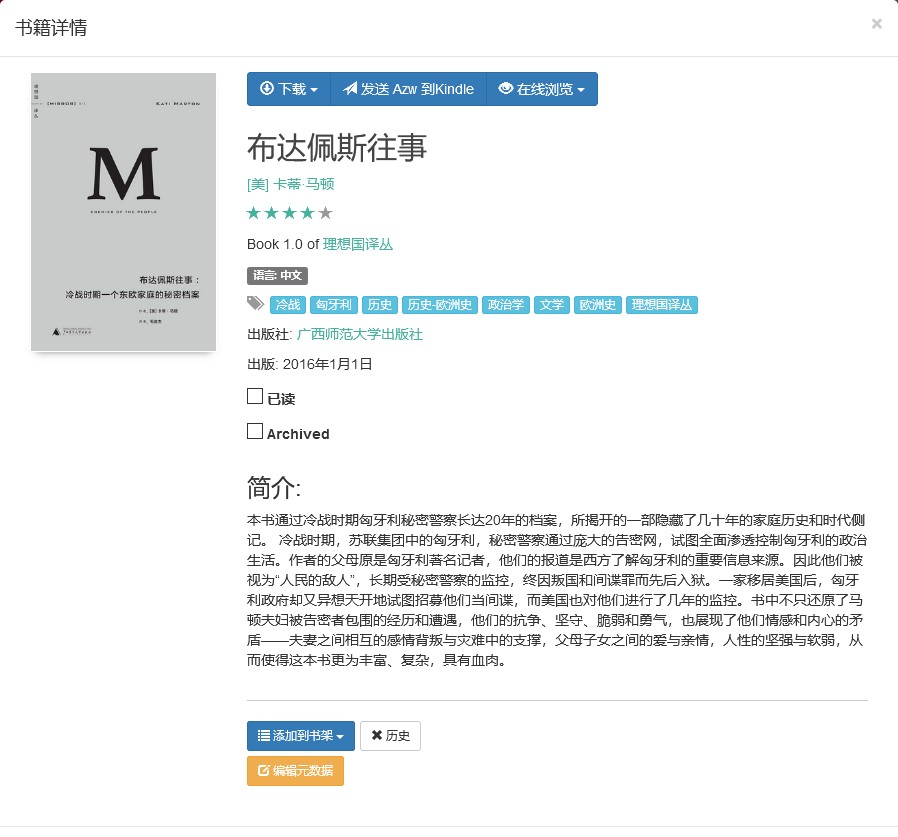
Anyone who reads e-books frequently and has used a Kindle must have experienced the pain of organizing e-books. Especially for people like me who often download e-book files and then import them to Kindle for reading (either to save money or because there are no books we want to read in the Kindle store), there is a lack of an effective management solution for those complicated e-books with different titles, authors, covers, and file formats to fully manage their reading progress and time.
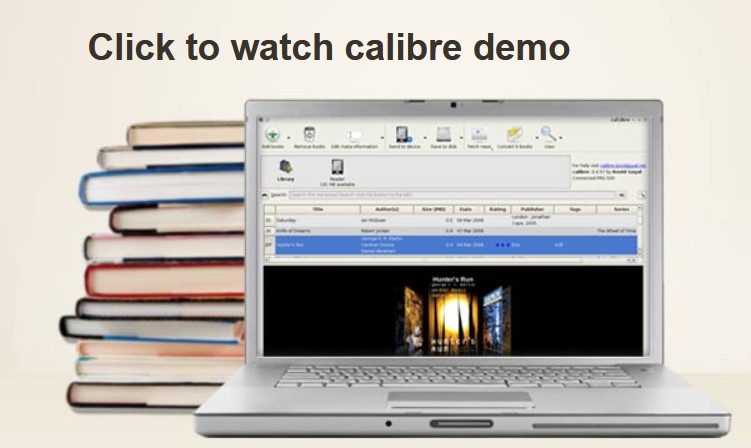
For a long time, Calibre on PC and Mac has been a unsatisfactory e-book management solution. It not only supports multiple platforms and has powerful functions (supporting e-book organization, editing, format conversion, one-click push to Kindle, etc.), but it is also completely free. So why do I describe such a powerful software as “unsatisfactory”? Because Calibre has not had major functional updates for many years, as an e-book management software, it can no longer adapt to the needs that people are accustomed to today. Specifically, Calibre has the following disadvantages:
- The interface is old (or primitive?) and looks like software from ten years ago;
- The startup and operation speed are slow and the operation is cumbersome;
- Does not support multi-device synchronization and does not provide cloud storage services (this is the most important point).
For people like me who are busy studying or working and rarely use the same terminal device for a fixed period of time, multi-terminal synchronization and cloud storage are almost indispensable functions. And today, as web programs and WeChat applets become increasingly popular, sometimes even downloading a specialized application seems cumbersome (perhaps because of the technological advancements in recent years). Therefore, it is best to have an e-book management server application similar to Plex Movie and TV Library, which allows me to manage and read my own e-books anytime and anywhere by opening a web page. Fortunately, such software does exist, and it is Calibre’s successor - Calibre Web .
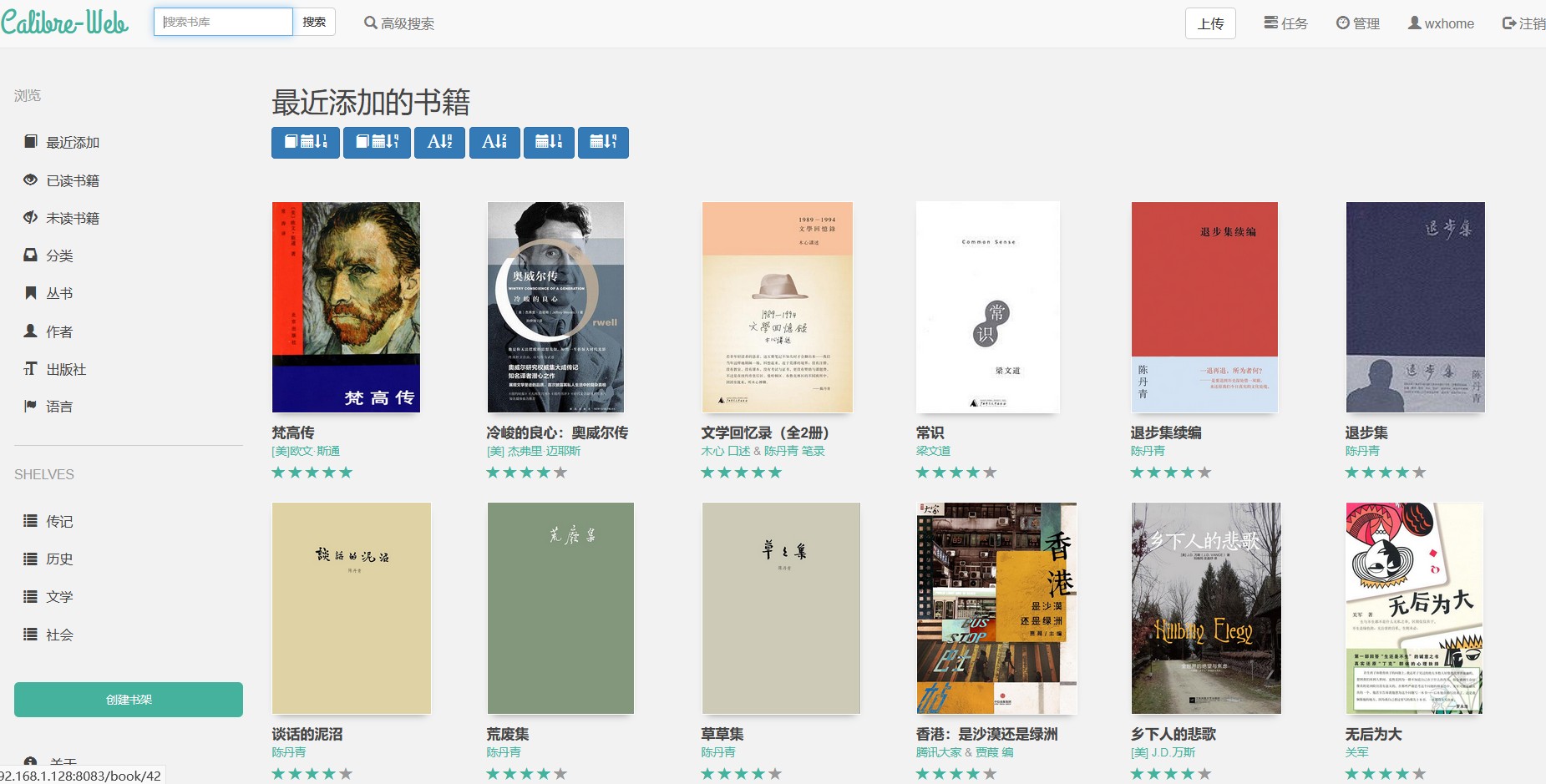
The picture below is a personal e-book management website (or personal electronic library?) that I built on my NAS
using Calibre Web. Through this website, I can easily upload, modify, organize, and push e-books in various formats on various terminal devices. Since it is a web version, I don’t have to worry about massive e-books taking up the hard drive capacity of my phone or computer, nor do I have to worry about multi-end synchronization. What’s even more commendable is that because Calibre Web was developed relatively recently, its interface is also in line with the current mainstream aesthetic standards.
 Regarding how to build Calibre Web, there are many tutorials written by seniors on the Internet, and they have explained it in great detail. First of all, you must have a server or NAS that can run stably (in fact, any ordinary computer will do, as long as you are willing to let it run 24/7). Then, you need to set up a docker
environment on your device, because Calibre Web requires docker as a running carrier. Finally, after simple installation and configuration, you can have your own e-book management website.
Regarding how to build Calibre Web, there are many tutorials written by seniors on the Internet, and they have explained it in great detail. First of all, you must have a server or NAS that can run stably (in fact, any ordinary computer will do, as long as you are willing to let it run 24/7). Then, you need to set up a docker
environment on your device, because Calibre Web requires docker as a running carrier. Finally, after simple installation and configuration, you can have your own e-book management website.
Here we take Synology
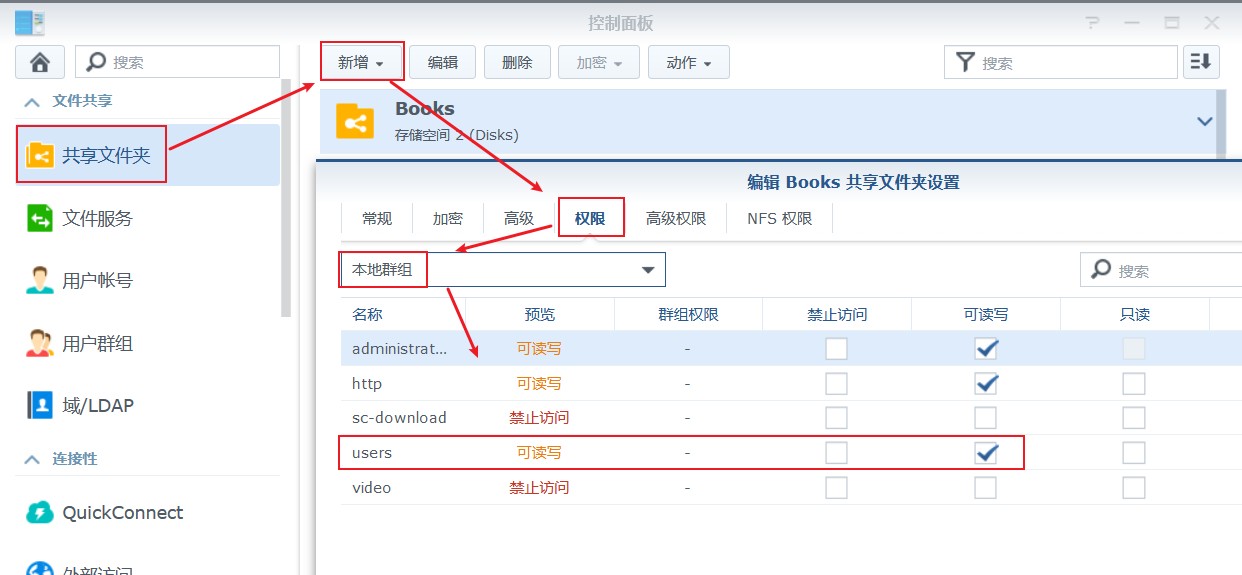
as an example. First create a new shared folder in the “Control Panel” to store Calibre Web’s database and e-book resources. I’ll name it “Books” here. After creation, remember to open the folder to read and write permissions for all users, otherwise Calibre Web will not function properly.
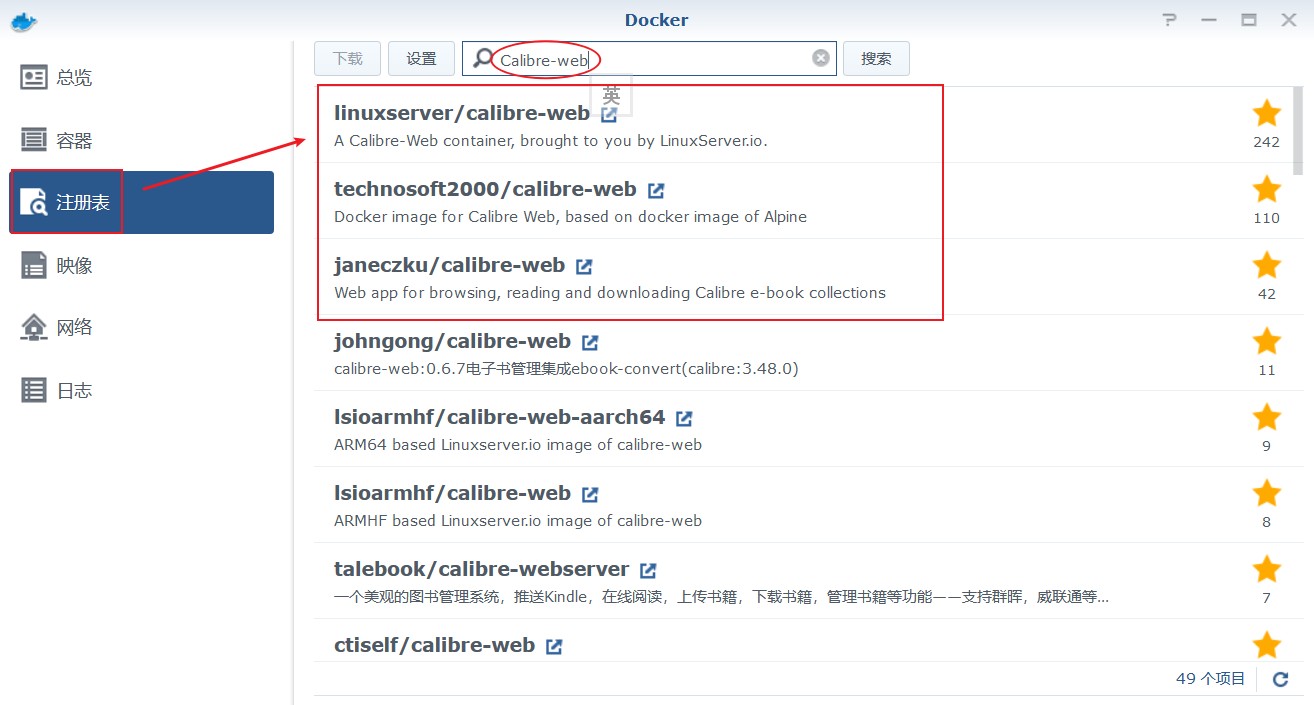
 After the shared folder configuration is completed, choose to install docker in Synology’s package center and open it. Then search for “Calibre-web” in the “Registry” page. The three images selected in the box here can all be downloaded. There is not much difference between them. Here we mainly recommend linuxserver/calibre-web. In the dialog box that pops up after double-clicking, select “latest” and click “OK” to start the download.
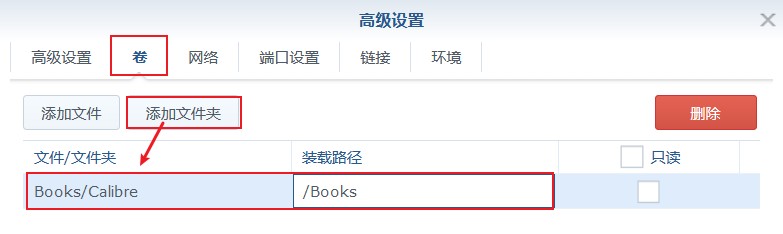
 After the image is downloaded successfully (a prompt will pop up in the upper right corner of the system), enter the “Image” page of docker, select the linuxserver/calibre-web image you just downloaded, and click to start. In the pop-up dialog box, click “Advanced Settings” and then make settings as shown below.
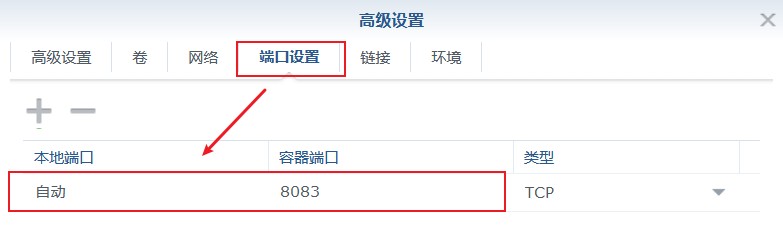 After that, start Calibre Web and enter Synology’s intranet IP address + half-width colon + the port number set in the picture above (default is 8083) in the browser address bar. For example, my intranet IP address of Synology is 10.10.10.34, and the port number of Calibre Web is 3096, then the address I enter is:
http:10.10.10.34:3096
When entering Calibre Web for the first time, you need to perform some simple configurations, such as specifying the database directory (must match the “load path” set in the picture above), creating a user, and configuring email push. Regarding the configuration and use of Calibre Web, I won’t go into details here. There are a lot of online tutorials. By the way, if you want to continue using Calibre Web in a non-home intranet environment (such as a 4G network when traveling), you also need to configure intranet penetration or dynamic DDNS. As for these contents, they are beyond the scope of today’s article. We will have the opportunity to talk about them in the future.
After that, start Calibre Web and enter Synology’s intranet IP address + half-width colon + the port number set in the picture above (default is 8083) in the browser address bar. For example, my intranet IP address of Synology is 10.10.10.34, and the port number of Calibre Web is 3096, then the address I enter is:
http:10.10.10.34:3096
When entering Calibre Web for the first time, you need to perform some simple configurations, such as specifying the database directory (must match the “load path” set in the picture above), creating a user, and configuring email push. Regarding the configuration and use of Calibre Web, I won’t go into details here. There are a lot of online tutorials. By the way, if you want to continue using Calibre Web in a non-home intranet environment (such as a 4G network when traveling), you also need to configure intranet penetration or dynamic DDNS. As for these contents, they are beyond the scope of today’s article. We will have the opportunity to talk about them in the future.
Finally, I would like to recommend a book I am reading recently - “Once Upon a Time in Budapest” from the Utopia Translation Series. I hope you will like it.