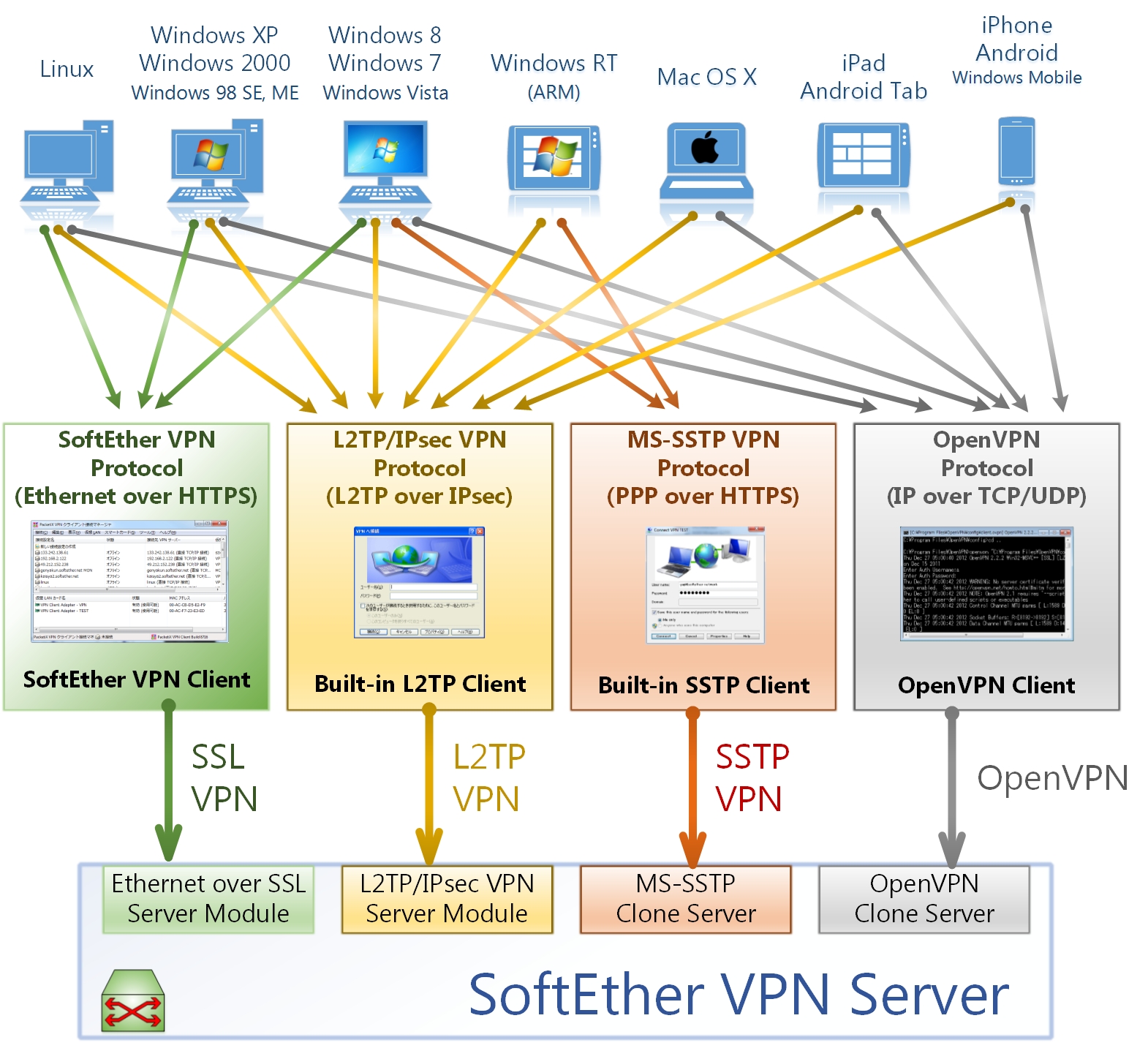
To access devices on a home or office LAN, such as a NAS , from outside the local network, there are usually two methods.
The first is to set up a VPN server on the router inside the LAN, then connect an external device to the internal network as a VPN client. In this case, the VPN acts like a network cable. An outside device connected through the VPN is effectively connected to the LAN by a virtual cable, so it can access internal resources almost as if it were physically inside the network.
The second method is simpler and more direct: use dynamic DNS to bind a domain name to the public IP address of the LAN server, then expose internal devices to the public internet through port forwarding. For well-known reasons, VPN connections inside China are often unstable, so most people choose the second method for internal network access.
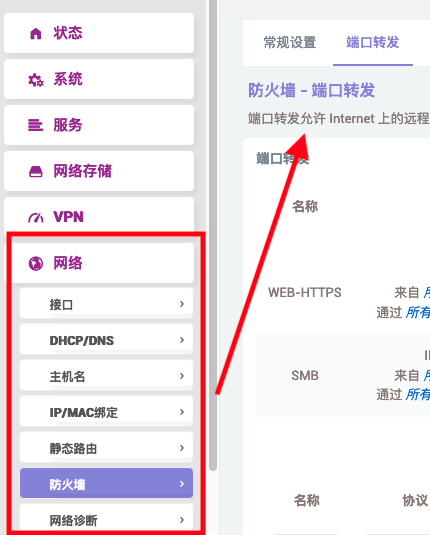
Port forwarding on a router is simple. Taking OpenWrt
as an example, you only need to create a forwarding rule under Network -> Firewall -> Port Forwards, mapping the relevant port of the internal device to an external port.
However, the internal IP address of a LAN device can change as DHCP leases renew. Although we can manually fix a device’s IP address through IP/MAC binding, practice shows that this is not always stable. As a result, port forwarding rules often need manual updates, which makes maintenance tedious. If we are away from home for a long time and cannot access the LAN, modifying those rules becomes difficult.
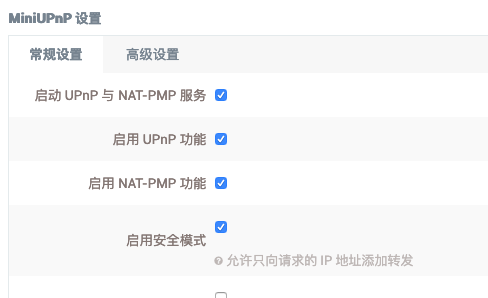
This is where UPnP, Universal Plug and Play, comes in. As the name suggests, it is a tool for automatically configuring port forwarding. As long as the server and other internal devices enable UPnP and are configured properly, port forwarding can be handled once and for all.
Using Synology and OpenWrt as an example, first install and enable the UPnP service on the OpenWrt router.
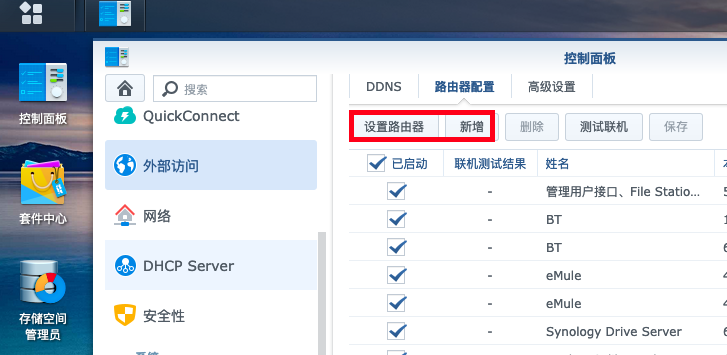
Then log in to the Synology admin panel. Go to Control Panel -> External Access -> Router Configuration, and choose Set up router. The system will automatically detect the network environment, router model, and configuration. If nothing unexpected happens, the whole process can be completed automatically without manual setup.
After that, click Create, choose the applications and ports you want to forward, and click Save.
Finally, return to the UPnP page in the router admin panel and check the port forwarding rules that were automatically added.
One thing to note: Chinese ISPs generally block ports 443 and 445 on residential broadband. Port 443 is the default HTTPS port, and 445 is the default SMB port. So even if you add automatic mappings for these two ports through UPnP, external access through 443 and 445 will not work.
In that case, you need to manually configure port forwarding in the firewall: map internal ports 443 and 445 to external ports other than 443 or 445, such as 444 and 446, depending on your preference. This lets you bypass the ISP block and access those services from outside.