Recently, I finally gave up the buy-out game model on platforms such as Steam or Epic Games, and switched to a subscription model like Xbox Game Pass (XGP) . Although the buyout system can greatly satisfy the “like plus one” style of collecting, since I started my internship, it has been difficult for me to spare a whole block of time to clear various stand-alone games. As a result, my game library contains a large number of purchased but unfinished games. This not only reduces my desire to buy and try the latest games, but also causes a huge waste of funds. I don’t know since when, playing games has become a “task” to be completed, and the original intention of relaxing after work has been lost.
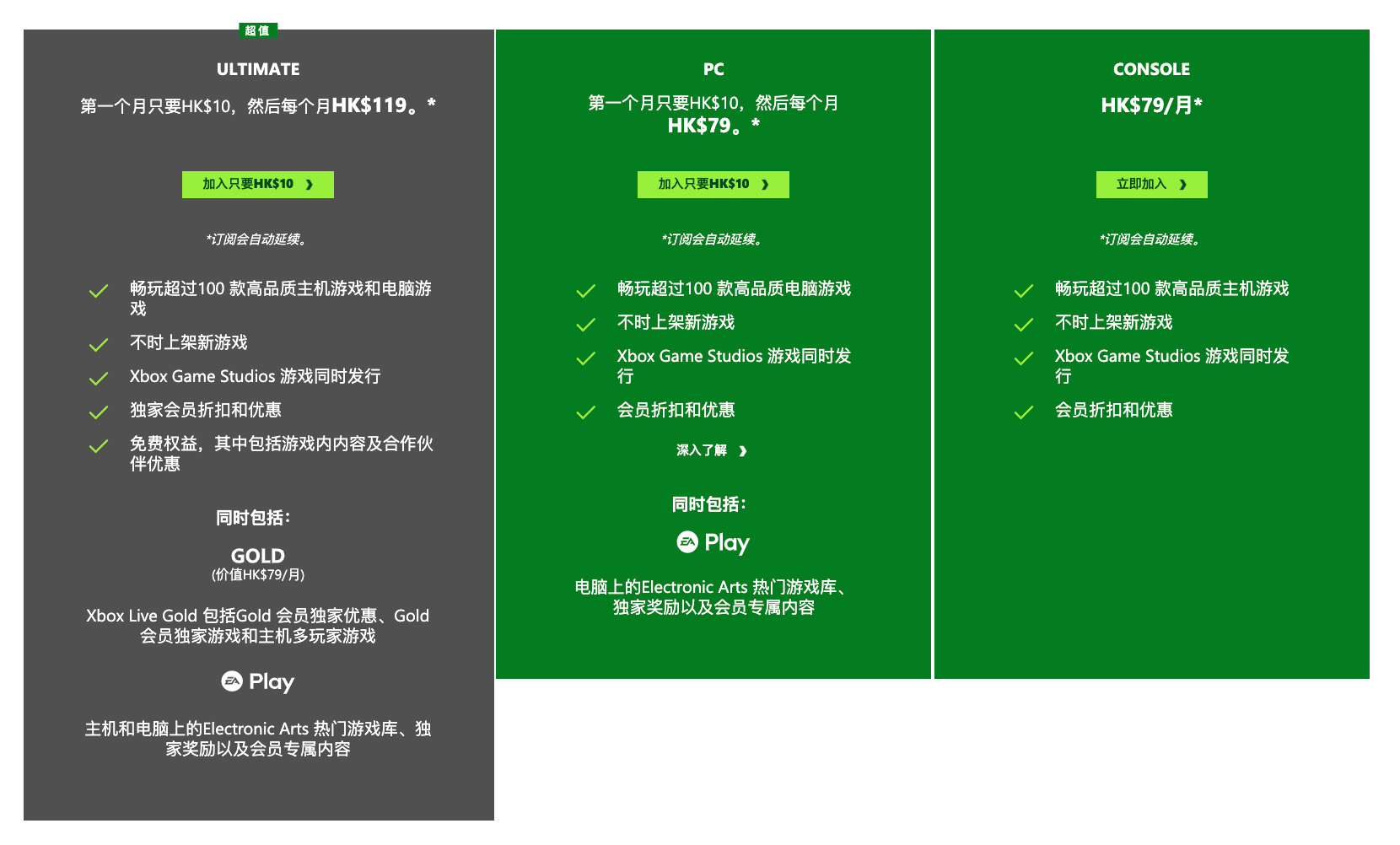
Therefore, I struggled for a long time and finally decided not to buy any stand-alone games in the future. If I am not so busy for a certain period of time (for example, I quit my job and am at home now), I will subscribe to XGP for one month and experience the latest stand-alone games. In fact, Xbox accounts can switch regions at any time. Therefore, we can simply switch the system region of Win10 to Hong Kong to enjoy the preferential price of Hong Kong XGP of HK$79 per month (HK$10 for the first month). At a time when a single-player game can easily cost more than 300 yuan, XGP is indeed a very cost-effective solution. After all, one month is enough for me to finish a medium-sized stand-alone game, and the price of buying this game is far more than 79 Hong Kong dollars.
 After activating XGP, I started thinking about how to use my “fragmented time” to play games while traveling on business. For example, after getting off work every day during my stay, I only had a MacBook with weak performance when I stayed in the hotel. How can I use the existing equipment to play stand-alone games on XGP in the hotel? In fact, there is only one solution: remote desktop. As long as I turn on the wake-on-LAN function
on my PC at home and set a certain remote desktop software to start automatically at boot, I can play games on my home computer anytime, anywhere through wake-on-LAN + remote control.
After activating XGP, I started thinking about how to use my “fragmented time” to play games while traveling on business. For example, after getting off work every day during my stay, I only had a MacBook with weak performance when I stayed in the hotel. How can I use the existing equipment to play stand-alone games on XGP in the hotel? In fact, there is only one solution: remote desktop. As long as I turn on the wake-on-LAN function
on my PC at home and set a certain remote desktop software to start automatically at boot, I can play games on my home computer anytime, anywhere through wake-on-LAN + remote control.
Although the idea is very simple, it really took me a lot of effort to find suitable remote desktop software. After careful searching, I found a remote desktop software called Parsec . It not only supports both Windows and macOS dual platforms, but is also optimized for remote gaming. Not only that, Parsec also supports Hevc encoding . As long as the client device supports Hevc decoding, it can greatly reduce the volume of streaming data, reduce the consumption of network bandwidth and traffic, and improve the remote gaming experience.
The use of Parsec is very simple. Just go to the official website to register an account and download and install the Parsec client on the server (device used to run the game) and client (device used for remote control). After installing and logging in to the software on both devices at the same time, the software interface should look like this:
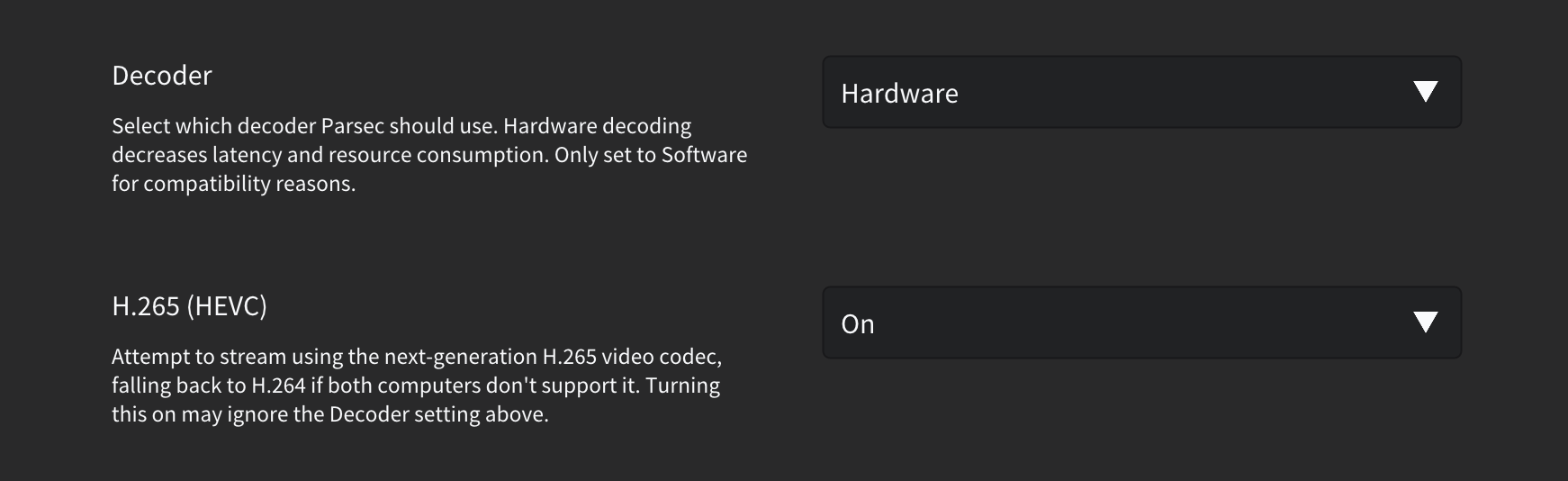
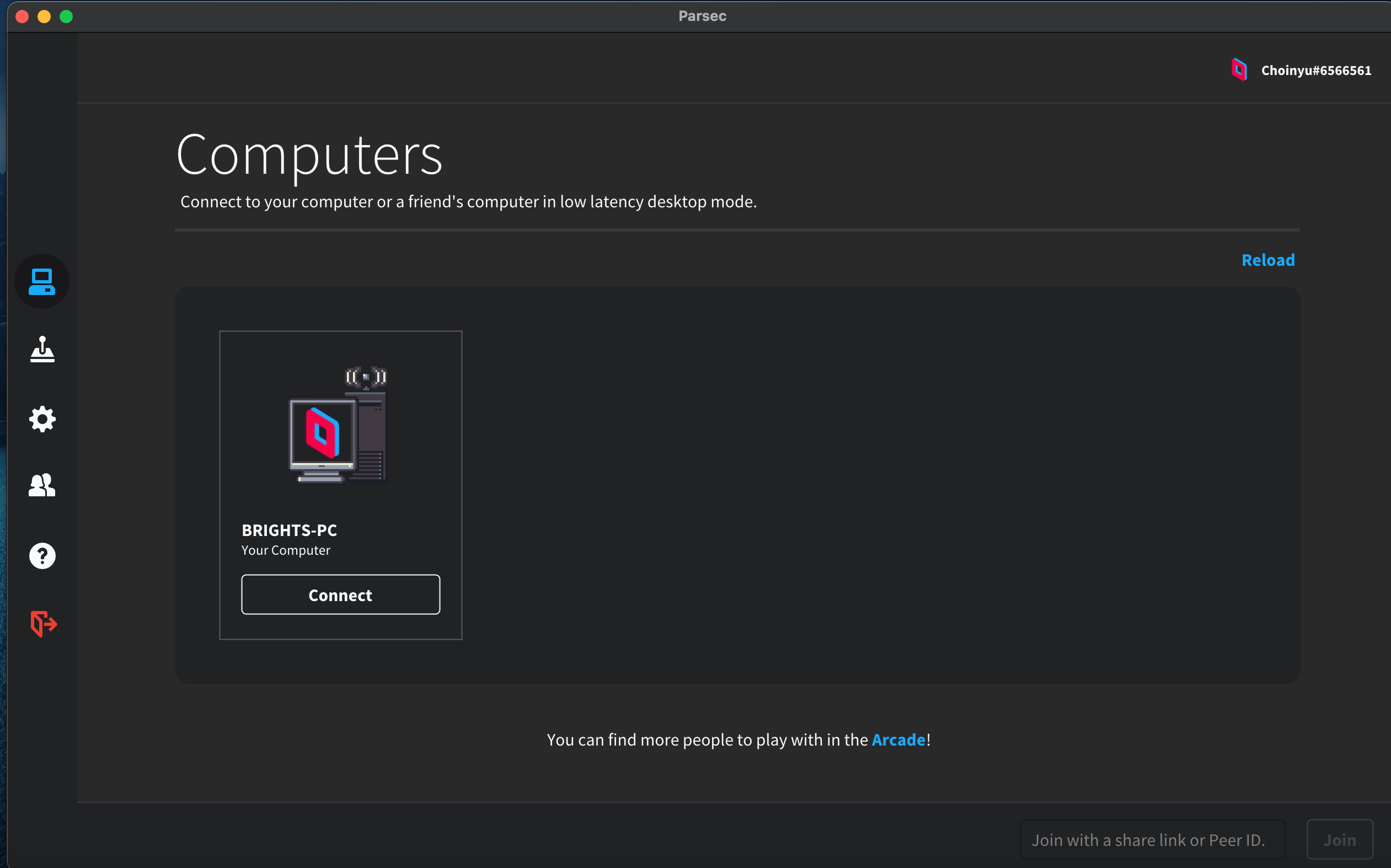 At this point, just click the Connect button on the corresponding device to establish a remote connection. But in order to improve our gaming experience, some simple settings need to be made before official use. Click the gear icon on the left to enter the settings interface, and turn on the “Hardware Decoding” and “Hevc Encoding” functions of the client device.
 After the connection is successful, the software will automatically mute the controlled device and transfer all system sounds to the controlled device for playback. This detail is very user-friendly. After testing, in a local area network (gigabit bandwidth) environment, the two devices can basically achieve zero-latency remote control. However, in a wide area network environment, due to bandwidth and delay limitations, the remote control is slightly delayed and stuck, but it can still satisfy some games that do not have such high operational requirements. For example, I am currently completing “Walker on the Wrong Road”. This is a “HD Mosaic” game, and all battles are turn-based, making it ideal for remote play.
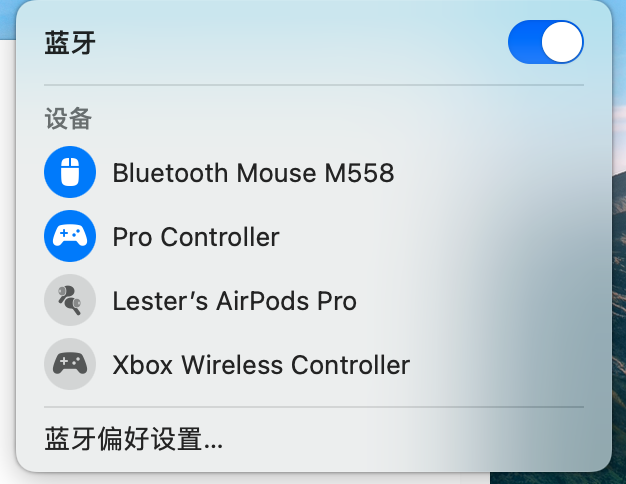
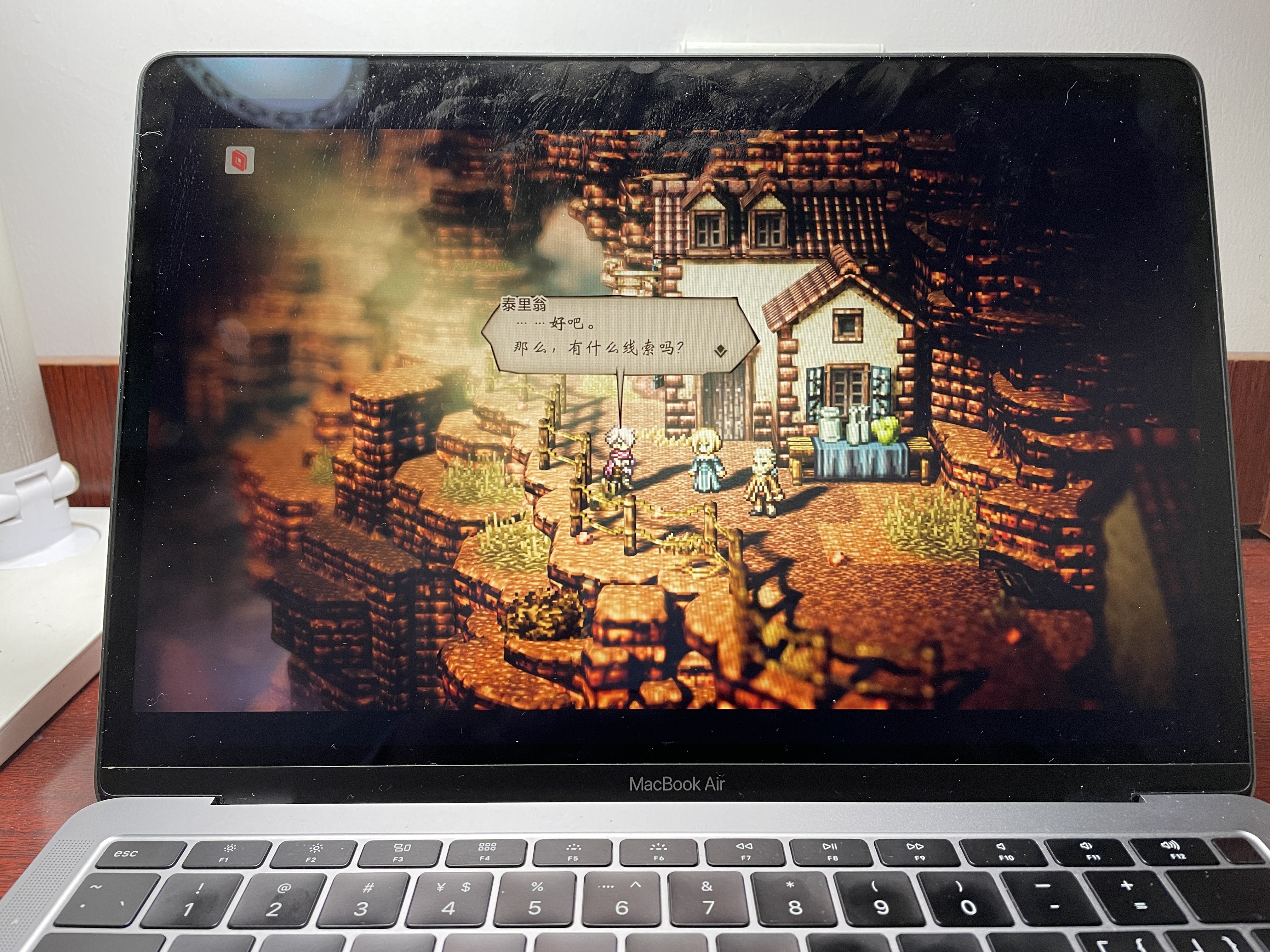 Since macOS natively supports the Xbox and Switch Pro controllers, and Parsec can also directly recognize all the buttons of the above two controllers, during remote gaming, you can directly control the server-side game by connecting the controller to the client device. When the network condition is good, the experience of remote gaming is almost the same as that of local gaming.