
After an optical modem is switched to bridge mode, the OpenWrt router becomes the default gateway and handles dialing and NAT. As a result, client devices cannot obtain IP addresses on the same subnet as the modem, and therefore cannot log in to the modem’s admin page.
In everyday use, modem configuration is almost a one-time thing, so the admin page is rarely needed. Still, it is annoying to connect a device directly to the modem by cable or Wi-Fi every time you want to log in. With a few simple settings, you can access the modem admin page at any time while still connected to the OpenWrt router.
The principle is simple: while the existing DHCP server continues working normally, assign the router’s WAN port another IP address on the same subnet as the optical modem. This assumes your router supports multiple WAN interfaces.
Using OpenWrt as an example, go to Network -> Interfaces and click Add new interface.
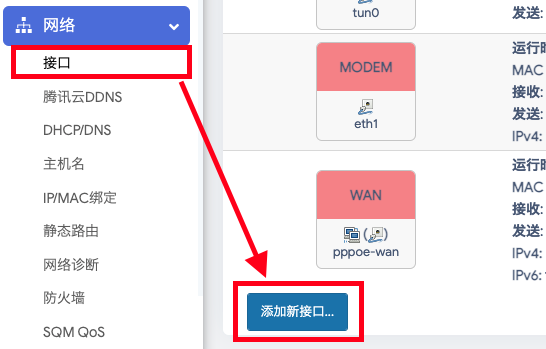
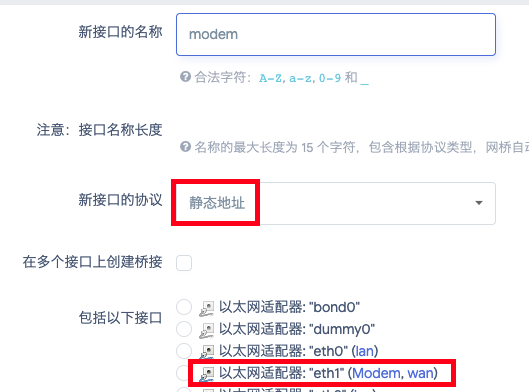
The interface name can be anything. Set the protocol to Static address, and choose the physical interface currently bound to the WAN port. Do not choose DHCP if possible, because a modem in bridge mode usually disables its own DHCP function and will not automatically assign an IP address to the new interface. You need to use Static address and manually specify the new interface’s IP address.
After these settings, click Submit to enter the detailed configuration page.
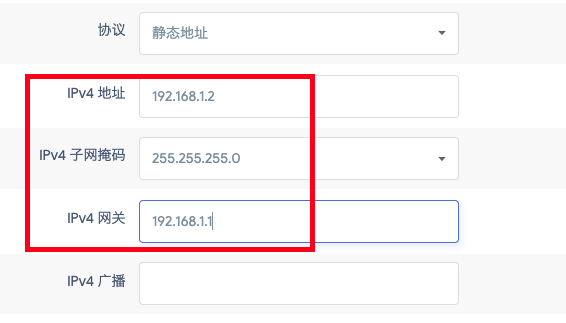
The IPv4 address must be on the same subnet as the modem. For example, if the modem’s LAN address, which is also the modem admin address, is 192.168.1.1, then the static IP address of the new interface should be 192.168.1.x. Set the subnet mask to 255.255.255.0, and set the default gateway to the modem’s LAN IP address. For background on IP subnets and subnet masks, you can refer to this article
.
After finishing the settings, click Save & Apply.
After the new interface is configured, DNS cache delay may temporarily prevent normal browsing. Restarting the router should fix it. If you previously configured port forwarding, all port forwarding rules will stop working after the new interface is created. Additional firewall settings are needed to restore them.
Go back to the detailed settings page for the new interface. Under Firewall Settings, bind the original WAN firewall zone to the new interface.
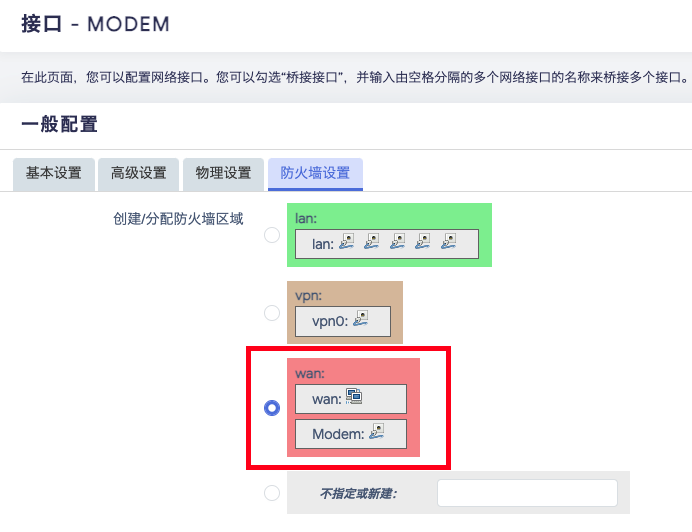
Then go to Network -> Firewall -> Port Forwards, and simply save and apply the existing port forwarding rules again.
That should be it. If nothing goes wrong, you can now access the optical modem admin page at any time while the modem remains in bridge mode.