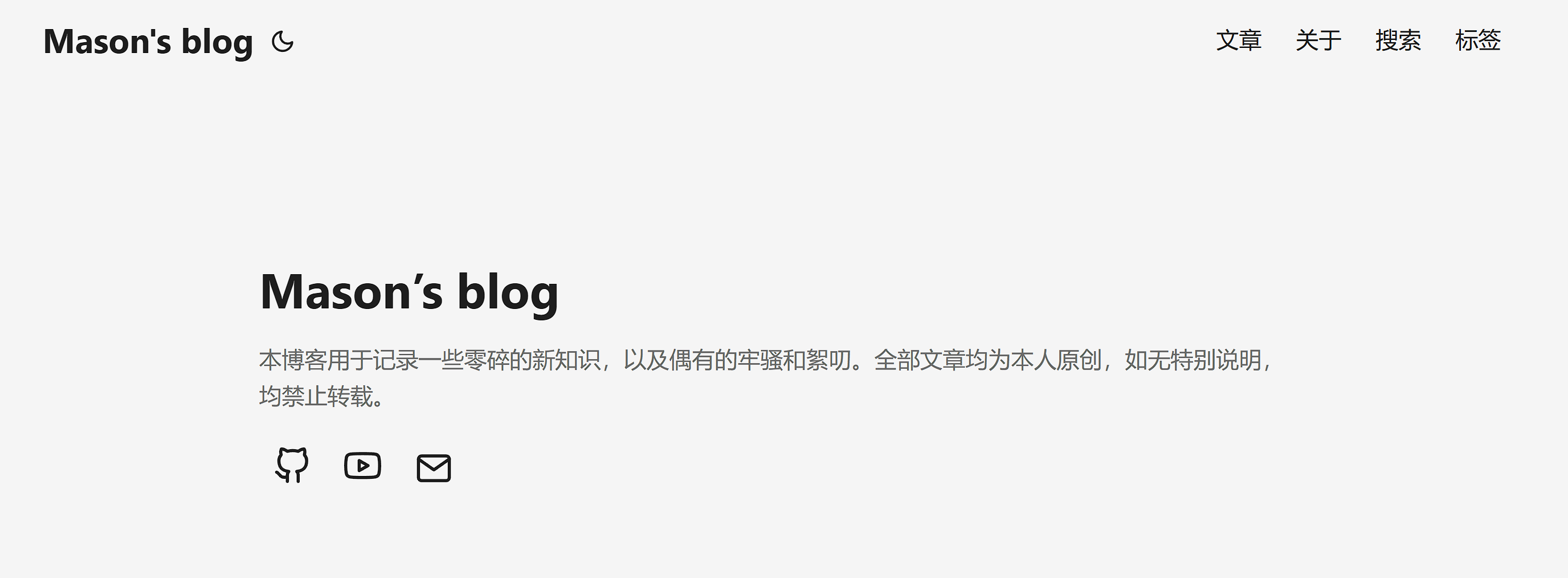
When I first started building this blog 4 years ago, I wrote a short article introducing some of the tools I used when building the website. Today, many of the tools mentioned in that article are obsolete. In addition to the overall migration of this blog and the use of the new PaperMod theme, the configuration methods of many functions have changed. So I decided to write another article to record some of the technical details of my tossing around with this new topic.
#Configuration file syntax
Hugo also supports three configuration file syntaxes, namely YAML, TOML and JSON. They are all commonly used data serialization and configuration file formats, and each has its own characteristics and applicable scenarios.
YAML (YAML Ain’t Markup Language)
YAML is a human-readable data serialization format commonly used for configuration files and data exchange. Its syntax format is:
name: John Doe
age: 30
city: New York
hobbies:
- reading
- traveling
Its characteristics are:
Concise syntax, easy to read and write
Supports comments, multi-line strings and complex data structures
Use indentation to indicate hierarchical relationships
TOML (Tom’s Obvious, Minimal Language)
TOML is a language designed to be a minimal configuration file format, designed to be easy to read and write. Its syntax is:
[person]
name = "John Doe"
age = 30
city = "New York"
[person.hobbies]
favorite = "reading"
others = ["traveling", "photography"]
Its characteristics are:
The syntax is intuitive and easy to understand
Support comments
Supports multiple data types, including date and time
Allows creation of nested data structures
JSON (JavaScript Object Notation)
JSON is a lightweight data exchange format, originally derived from JavaScript, but now widely used in various programming languages. Its syntax format is:
{
  "name": "John Doe",
  "age": 30,
  "city": "New York"
}
Its characteristics are:
Concise and easy to read
Fast parsing speed
Highly compatible with JavaScript
Support basic data types: string, number, boolean, null, object and array
Considering the readability and compatibility with the current theme, the configuration file syntax I chose is YAML. All the following configuration commands will be presented in YAML format. It is worth noting that YAML is very sensitive to indentation. When rendering with Hugo, even if a line is missing a space, the rendering will fail, so pay special attention.
Add article timeline page (Archives)
Create a new archieves.md in the /Content/ directory and write the following content:
---

title: "Archive"
layout: "archives"
url: "/archives/"
summary: archives

---
#Add search page (Search)
Step 1: Add the following content in the configuration file config.yml:
outputs:
  home:
    - HTML
    - RSS
    - JSON # required for the search page
Step 2: Create a new archieves.md in the /Content/ directory and write the following content:
---
title: "Search" # use any language you prefer
layout: "search" # required for the search page
# url: "/archive"
# description: "Description for Search"
summary: "search"
placeholder: "Enter search keywords here"
---
#Add menu
Add the following content to the configuration file config.yml:
menu:
  main:
    - name: Posts
      url: archives
      weight: 5
    - name: Search
      url: search/
      weight: 10
    - name: Tags
      url: tags/
      weight: 10
    - name: About
      url: about/
      weight: 10
Enable Emoji ✅
Hugo natively supports Emoji rendering, just add the following content to the configuration file config.yml:
enableEmoji: true
In this way, as long as you enter :emojiname: that conforms to Markdown syntax in the .md file (write the Emoji name between two half-width colons), you can enter an Emoji. You can query the Emoji names in Markdown syntax in this list
.
Add Favicon icon
You can refer to my article
, visit this website
, convert your favorite site icon image into Favicon special format, and put all the generated files in the /static/ directory.
Optional: If you want to put the icon file into a subdirectory of /static/, such as /static/favicon/, you also need to add the following content to the configuration file config.yml:
params:
  assets:
    favicon: "/favicon/favicon.ico"
    favicon16x16: "/favicon/favicon-16x16.png"
    favicon32x32: "/favicon/favicon-32x32.png"
    apple_touch_icon: "/favicon/apple-touch-icon.png"
    safari_pinned_tab: "/favicon/safari-pinned-tab.svg"
Enable code copy button
Add the following content to the configuration file config.yml:
params:
  ShowCodeCopyButtons: true
The page turn button displays the page number
Add the following content to the configuration file config.yml:
params:
  ShowPageNums: true
Add an RSS subscription button to the article list page
Add the following content to the configuration file config.yml:
params:
  ShowRssButtonInSectionTermList: true
RSS Feed output full text
Add the following content to the configuration file config.yml:
params:
  ShowFullTextinRss: true
Open external links in new tabs
Create a new render-link.html in the /themes/theme name/layouts/_default/_markup/ directory and write the following content:
<a href="{{ .Destination | safeURL }}"{{ with .Title}} title="{{ . }}"{{ end }}{{ if strings.HasPrefix .Destination "http" }} target="_blank" rel="noopener"{{ end }}>{{ .Text | safeHTML }}</a>
Customize hyperlink style
PaperMod theme supports custom CSS. We can change the default hyperlink style of the website through custom CSS, such as color, underline, and changes when the mouse is hovered.
Create a new custom.css in the /themes/theme name/assets/css/extended/ directory and write the following content:
.post-content a {
  color: #0969da;
  box-shadow: none;
  text-decoration: none;
}

.post-content a:hover {
  text-decoration: underline;
}
This code will set the hyperlink color in the article content to blue (#0969da) and add an underline on mouseover.
SEO optimization related
SEO (Search Engine Optimization) is a method of improving a website’s natural ranking in search engine results pages by optimizing its content and structure. The goal of SEO is to increase the organic traffic of the website, improve the visibility of the website, and attract more target audiences. To do SEO optimization for Hugo site, we need to do the following:
Configuration file optimization
Add the website description in the configuration file config.yml:
params:
  description: "Your site description"
Similarly, we can also set the title, keywords and description for each article, and add the following content at the head of the .md file to define the basic information of the article:
---
title: "Post Title"
keywords:
  - keyword1
  - keyword2
description: "Post description"
---
Create sitemap sitemap
A sitemap is an important website document that provides search engines and users with an overview of your website’s structure. To create a sitemap for a Hugo site, add the following content to the configuration file config.yml:
sitemap:
  changefreq: weekly
  filename: sitemap.xml
  priority: 0.5
Among them, changefreq represents the update frequency, filename represents the generated site map file name, and priority represents the default priority of the page. In this way, Hugo will generate a sitemap.xml file in the root directory of the website so that search engines can understand the website structure.
Create robots.txt crawler index
Robots.txt is a plain text file located in the root directory of the website. It is used to submit the sitemap to search engines and instruct search engines how to access and index the website content. To create a robots.txt for a Hugo site, add the following content to the configuration file config.yml:
enableRobotsTXT: true
In this way, Hugo will automatically generate the Robots.txt file in the root directory of the website.
Reference link
Home · adityatelange/hugo-PaperMod Wiki
Tossing Hugo & PaperMod Theme - Dvel’s Blog
Build Hugo’s personal website | PaperMod theme | ed
PaperMod theme configuration | 🚀 Tian Shaohan’s personal blog