Recently, the hottest topic in the AI world has been DeepSeek . As a typical example of a Chinese team overtaking on a different track, it has been praised and criticized by groups with very different positions.
Leaving aside the political and technical arguments, DeepSeek has genuinely made AI more accessible when viewed from the perspective of ordinary users and cost. Compared with overseas large-model providers such as OpenAI, DeepSeek is extremely cheap. For people who want to learn AI applications but have limited budgets, it is indeed one of the best choices.
However, because of capacity limits and large-scale hacker attacks, DeepSeek’s official servers have often been unstable recently. That has caused plenty of inconvenience. Fortunately, the open-source nature of DeepSeek’s large models means they can be deployed on third-party servers. SiliconFlow is one such provider. In cooperation with Huawei Cloud , it offers API access to DeepSeek R1 at a low price, allowing users to use DeepSeek’s model capabilities through its interface.
Getting a Third-Party DeepSeek API
First, register an account on SiliconFlow’s website
. You can use my referral code 1MwHUt0X; both you and I will receive 14 CNY in free credit, which can be used to try different models. If the free credit runs out and you want to top up, real-name verification is required, which is part of the local regulatory environment.
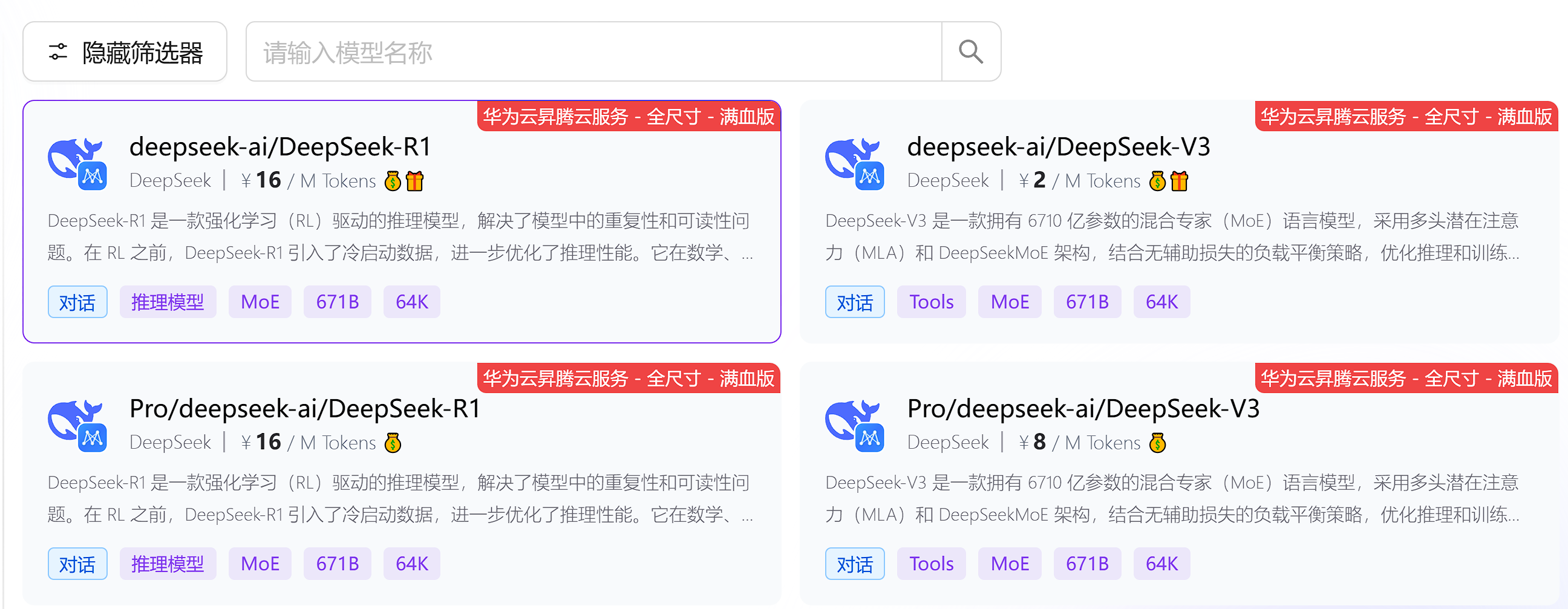
After logging in to the SiliconFlow dashboard, you can see the large models it supports, including the popular DeepSeek R1.
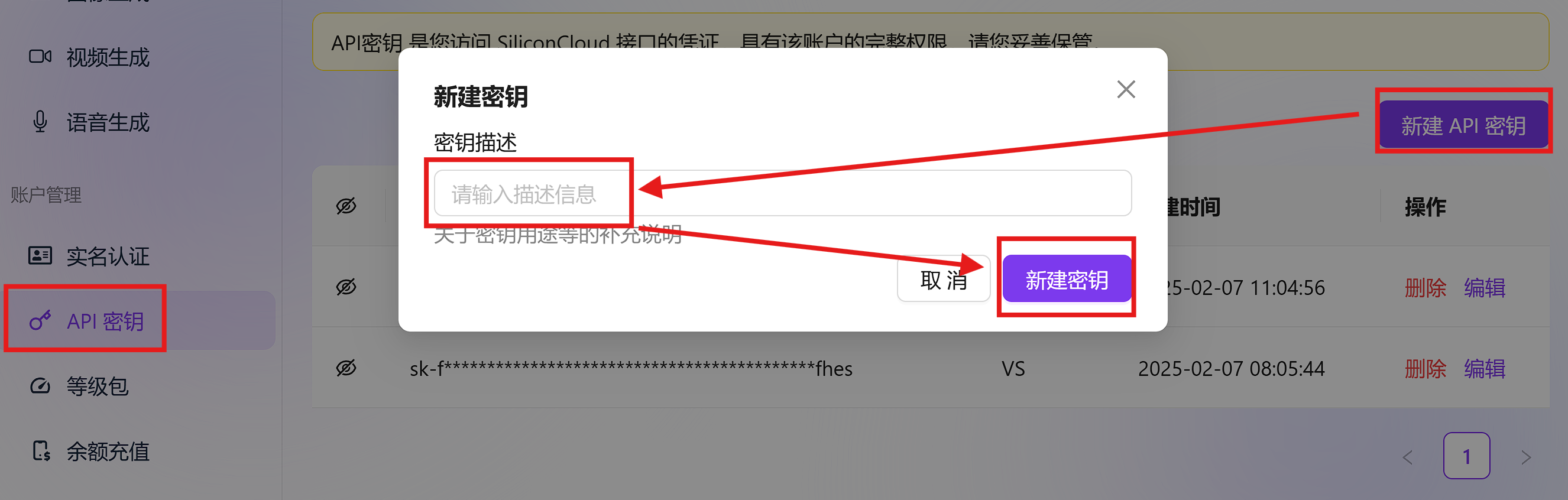
To call these models, you first need to create your own API key. In the dashboard, click API Keys on the left, then click Create API Key in the upper-right corner.
Using DeepSeek R1 with Chatbox
Chatbox is an open-source AI chatbot client. It supports almost all major platforms, including desktop, mobile, and web. It can call different AI models for conversation, image generation, coding, copywriting, and many other tasks.
For data security and privacy, all Chatbox runtime data is stored locally. In other words, Chatbox itself is only a tool that passes data to large models. It does not store your data on its own servers. Because of this, if you use Chatbox on multiple devices, settings and chat history do not automatically sync across them.
SiliconFlow’s official documentation explains how to connect its API to Chatbox. Here are the key points.
After installation, Chatbox opens the settings page on first launch. Older versions required adding a custom provider and setting the API domain to https://api.siliconflow.cn. Newer versions of Chatbox now support SiliconFlow natively. Just choose SILICONFLOW API as the model provider, enter your API key, and select the model you want to use.
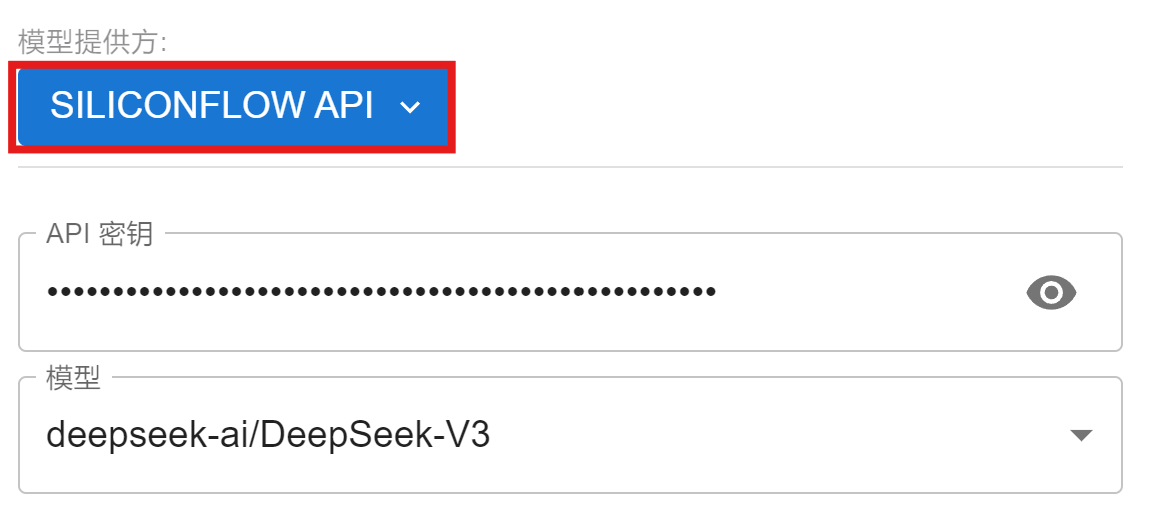
One thing to note: SiliconFlow provides both Pro/deepseek-ai/DeepSeek-R1 and deepseek-ai/DeepSeek-R1. Only the model without Pro can use the platform’s free credit. The Pro version requires paid balance. Do not choose the wrong one.
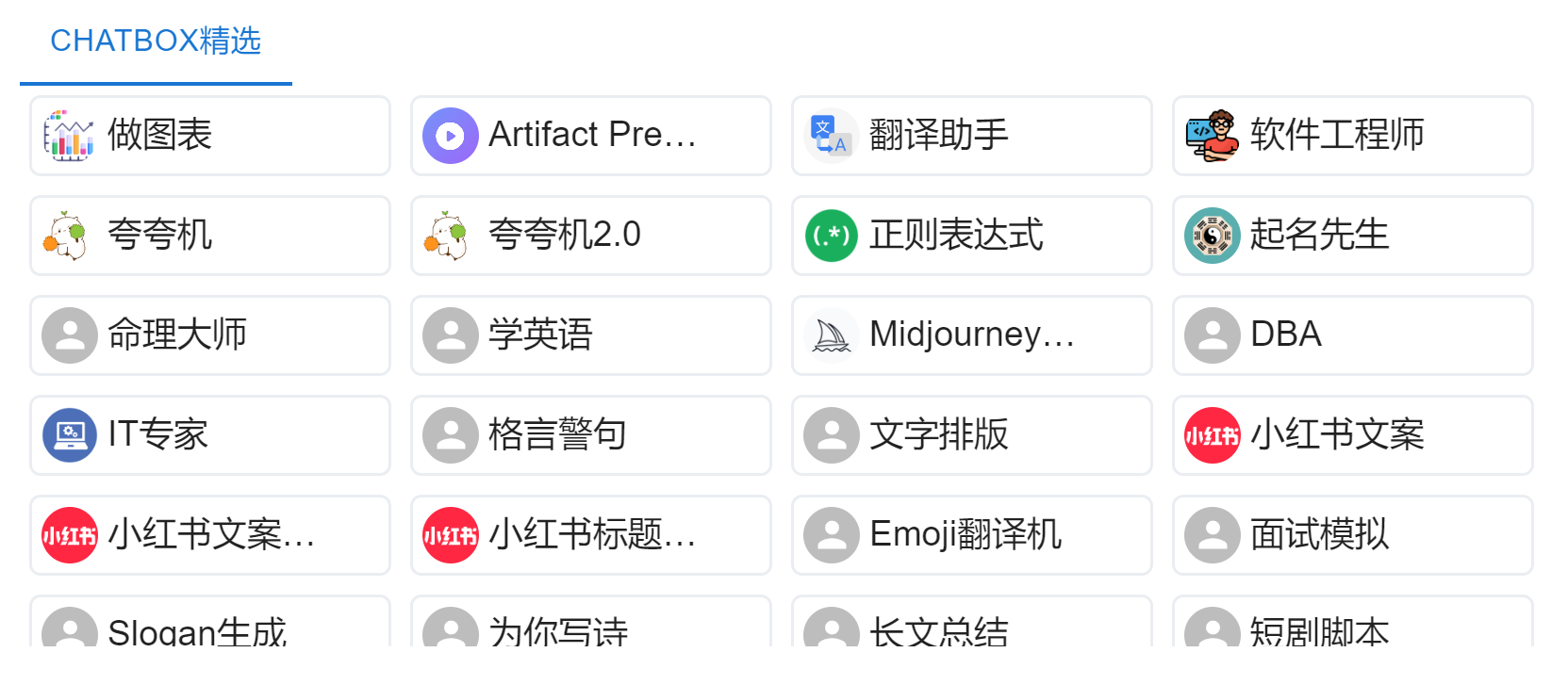
After saving the configuration, you can start chatting with the model. Chatbox also includes many useful preset prompt scenarios, and they are worth trying.
Using DeepSeek R1 with the Cline Extension in VS Code
For developers, Visual Studio Code is a very popular code editor, and it supports many AI extensions. With these extensions, VS Code can call SiliconFlow’s DeepSeek R1 API for AI-assisted programming.
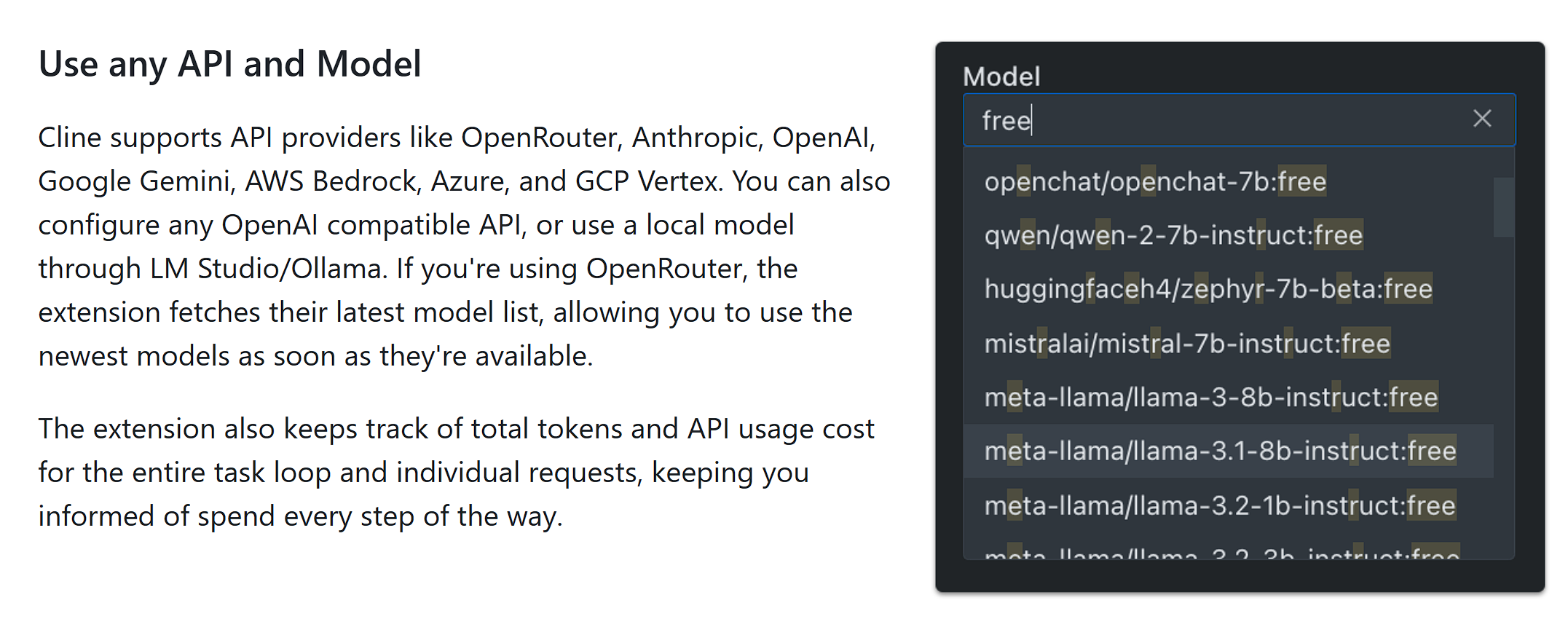
After downloading and installing VS Code, search for AI-related extensions in the marketplace. One example is Cline , a plugin that can call different large models to help users write code. It goes beyond simple code completion or technical Q&A. Cline supports OpenRouter, DeepSeek, OpenAI, Google Gemini, GCP Vertex, and other API providers. You can also configure any OpenAI-compatible API, or use local models through LM Studio or Ollama.
Open VS Code, click the extensions button on the left, search for Cline, and click Install on the Cline page.
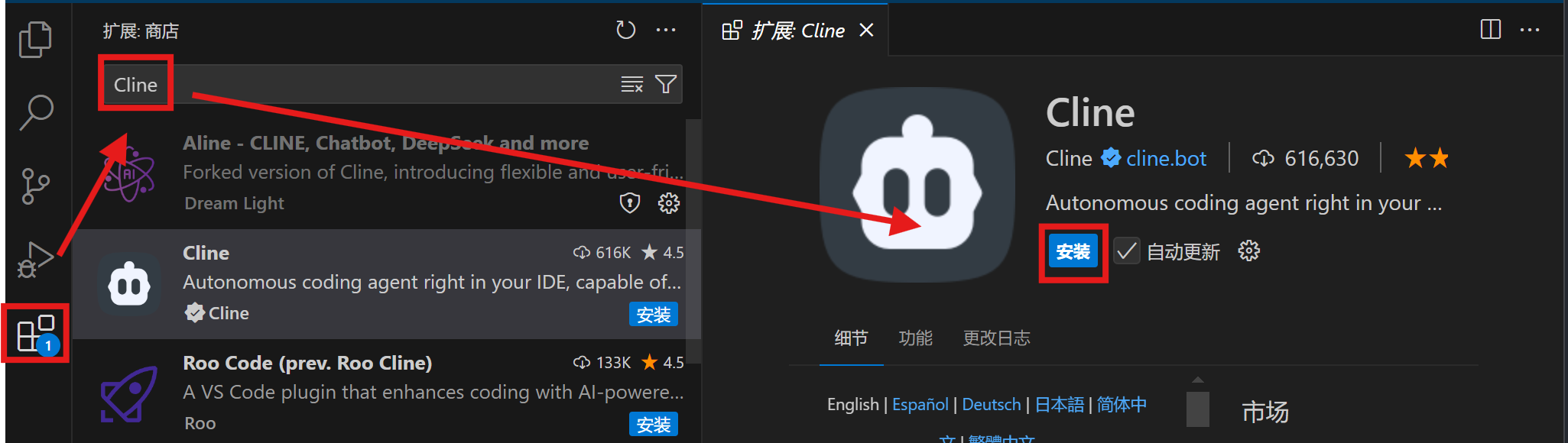
After installation, click the Cline icon on the left to open the plugin. Then click the settings button in the upper-right corner and configure the API:
- API Provider:
OpenAI Compatible - Base URL:
https://api.siliconflow.cn/ - API Key:
your SiliconFlow API key - Model ID:
deepseek-ai/DeepSeek-R1
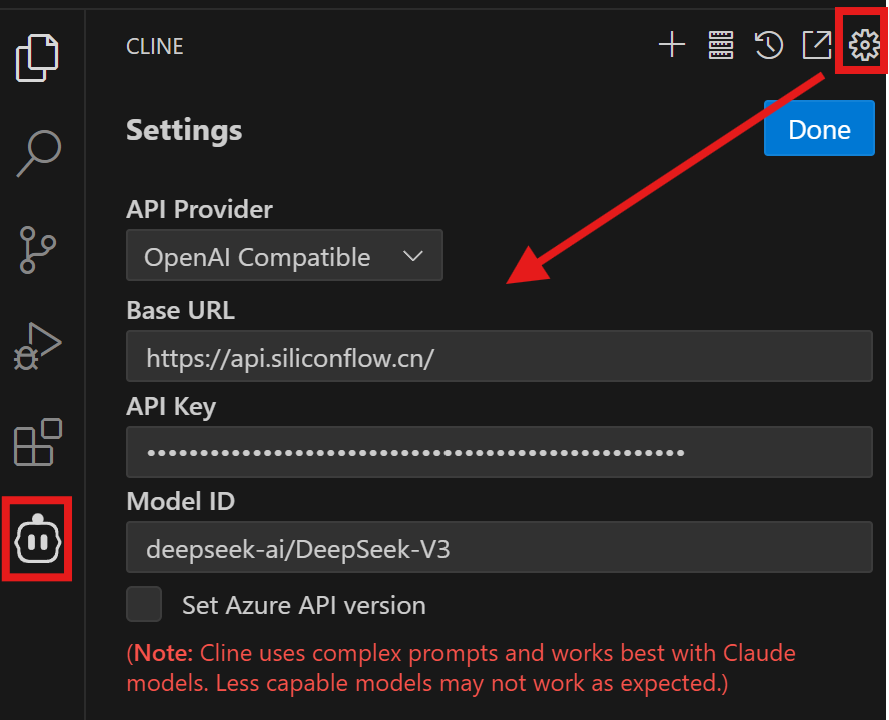
Finally, click save. You can now write code by chatting with the model. Cline supports one-click creation of folders and files. Used properly, even someone with no programming background can build small programs based on their needs.
Closing Thoughts
When DeepSeek’s official servers occasionally fail to connect, SiliconFlow’s third-party API can still provide smooth access to DeepSeek R1. Combined with Chatbox and VS Code, it can support both everyday AI conversations and professional coding assistance.